
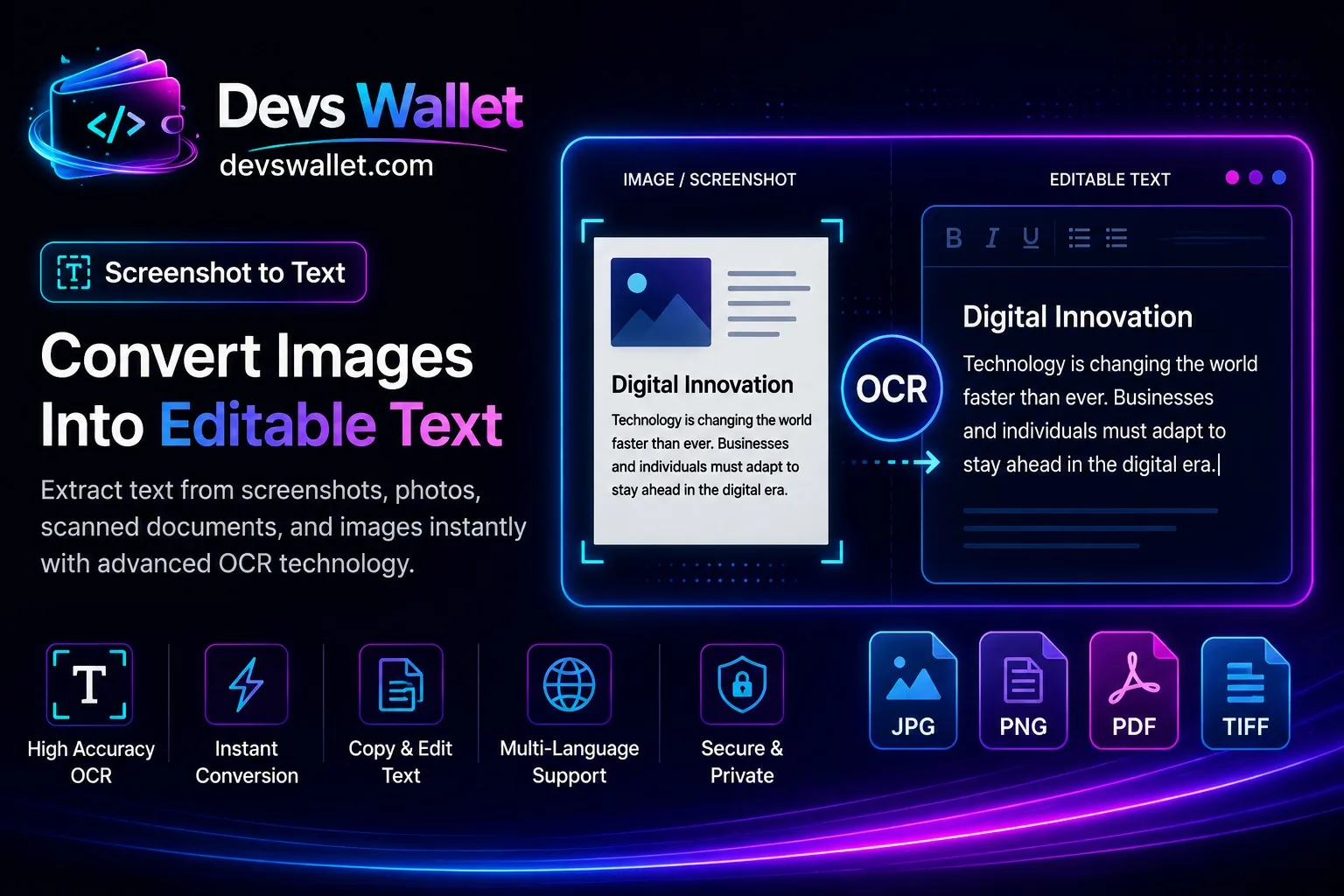
Need image to text done in the next five minutes? You can do it in the browser with Screenshot to Text.
This guide is a how to. You will open Screenshot to Text, run a small sample named image_to_text_sample_40, then run your real file.
The voice stays simple. Sentences stay short. You stay in control of what you paste. DevsWallet is for the United States audience that wants a calm image to text walkthrough, not a sales pitch.
If you would not email the file, do not paste it into a web box.
What you will be able to do with Screenshot to Text
By the end you can explain Screenshot to Text to a teammate in one minute. You will know the main button, the sample file name image_to_text_sample_40, and the first error to expect.
You will also know when Screenshot to Text is the wrong tool. That saves time. A wrong converter can eat an afternoon.
- Open Screenshot to Text from /tools/image-to-text.
- Run image to text on a tiny sample first.
- Copy or download the result and store it next to your source file.
- Link this guide at devswallet.com/blog/image-to-text in your runbook.
You do the review. DevsWallet does not hide warnings. If the page shows a red note, stop and fix the input.
What Screenshot to Text is for in plain words
Screenshot to Text lives in the AI group on DevsWallet. Tagline: OCR online: image to text.
Screenshot to Text is a focused ai helper for image to text. Extract text from screenshots and images with OCR. For students, offices and AI workflows.
Upload a screenshot. OCR reads the pixels. Copy the text. Fix names and numbers. Handwriting is weaker than printed UI text.
You work in English (US) on this page. Labels are in plain words. If a control is optional, the page says so. You can ignore optional boxes on the first run.
What Screenshot to Text is not
Screenshot to Text is not a hosted backend for your company. It is not legal advice. It is not a place to store customer databases. Use it for samples, teaching, and quick jobs.
Should you use Screenshot to Text today
Use Screenshot to Text when you need image to text in a browser and you can review the output yourself.
- You are on a laptop that blocks random installers.
- You want to show a teammate the click path on a call.
- You need a second opinion before you change production data.
- You are learning image to text and want a safe sandbox.
Skip Screenshot to Text when the file is classified, when a policy forbids web tools, or when you need a signed SLA.
Also skip it when the job is a million rows. Browsers freeze. Split the work. Or use a script you own after Screenshot to Text taught you the settings.
Checklist before you start Screenshot to Text
Have these nearby before you click Run.
- A tiny sample named image_to_text_sample_40. Keep it under a few kilobytes if you can.
- A note of the encoding or delimiter your source system uses.
- A place to save output, such as a folder named image to text out.
- A second device or phone if you must scan a QR or read an OTP.
- The Privacy Policy if the sample includes personal data.
If you cannot redact names, stop. Make a fake sample. Screenshot to Text still teaches the clicks. Fake data is easier to share in tickets.
Where Screenshot to Text lives on DevsWallet
Go to https://devswallet.com/tools/image-to-text. Confirm the heading says Screenshot to Text.
If you landed on a category page, use search. Type image to text. Open the card. Bookmark the tool URL, not a search result, so you do not grab the wrong cousin tool.
DevsWallet also lists this write up at https://devswallet.com/blog/image-to-text. Keep both tabs: one for the tool, one for this guide.
Check your browser zoom. The layout is built for a normal desktop width. A very small phone works for tiny jobs. Large files prefer a computer.
Do the Screenshot to Text job in order
Do this in order. Do not skip the tiny sample even if you feel busy.
- Read the one line help under the title.
- Enter the smallest input that still represents your bug.
- Click Run.
- Copy the output with the copy button, not a sloppy mouse swipe.
- Clear the box if you are on a shared computer.
If the page spins
Worker tools (PDF, OCR, speech, video) need time. Stay on the tab. If it fails, shrink the file. Then retry once. Three retries with the same huge file waste the afternoon.
One retry, then shrink the file
If Screenshot to Text fails twice on the same huge input, the file is the problem. Cut image_to_text_sample_40 down, click Run again, then grow the job.
If you need a teammate
Send the tool link https://devswallet.com/tools/image-to-text plus your sample name image_to_text_sample_40. Do not send production passwords.
Try this Screenshot to Text example
Pretend you are helping a US teammate named Alex. Alex has a file called image_to_text_sample_40. The goal is image to text before lunch.
Run the tiny sample first
You open Screenshot to Text. You paste only the first record or the first page. You click Run. You get a result you can explain in two sentences.
Write those two sentences in the ticket. Example: "I ran Screenshot to Text on image_to_text_sample_40. Output matched the number 42 and the date 2026-03-12." That is a useful note. "It worked" is not.
Then run the real file
Then you run the full file. If the full file fails, you already know the tool path is fine. The data is the issue.
Keep image_to_text_sample_40 in a folder of golden samples. Next month, when Screenshot to Text gets a UI tweak, you re run the same file. That is how you avoid surprises.
Screenshot to Text fields, buttons, and outputs
Here is a compact map of Screenshot to Text. Labels may shift slightly, but the jobs stay the same.
| Control | What it is for | Note |
|---|---|---|
| Input | Text, file, or option | Required |
| Run | Runs the job | Wait for the result |
| Output | Text or file | Save a copy |
If a control is missing, you are on a smaller screen. Open the advanced row. Or rotate the phone. Do not assume a missing box means the feature is gone.
Fix common Screenshot to Text snags
You pasted production secrets
Close the tab. Rotate the token. Screenshot to Text is the wrong vault. Use a password manager.
You trusted minify as a backup
Minify is not a backup. Keep pretty source in git. Screenshot to Text can minify for the CDN, not for history.
You ignored the first error
Parsers stop early. The tenth error might be fake until you fix the first comma.
You compared the wrong cousin tool
DevsWallet has related ai tools. Screenshot to Text is for image to text. A nearby card may look similar. Read the slug in the URL.
- Empty output: check clipboard permissions and that the box is not filtered by an extension.
- Weird characters: check UTF-8 vs Windows-1252.
- Slow run: shrink the file. Close extra tabs.
- Mobile copy fail: email the file to yourself or use desktop.
Screenshot to Text and your private data
Some DevsWallet tools run in your browser. Some send heavy jobs to a worker. Read the note near the submit button on Screenshot to Text.
Do not upload health records, tax IDs, or private keys unless you accept the risk. Privacy Policy and Cookie Policy explain cookies and ads.
You are still responsible for what you paste into Screenshot to Text. A local looking box can still be on a shared laptop. Clear the Screenshot to Text field when you walk away.
Ads on DevsWallet follow Google AdSense rules. This Screenshot to Text guide does not ask you to click ads. It asks you to finish image to text and leave with a file you trust.
Internal links worth saving
After Screenshot to Text, chain a second step instead of bouncing to random sites.
- AI Code Generator: Generate code with AI
- AI Humanizer: Humanize AI text
- AI Paraphrasing Tool: Rewrite text with AI
- AI Resume Builder: AI CV generator
- XML to CSV: XML rows to CSV
Company pages: About, editorial policy, contact.
A simple desk ritual for Screenshot to Text
Put the Screenshot to Text folder above Downloads so image_to_text_sample_40_ok does not vanish into a pile.
Pin Screenshot to Text next to your editor. One click to image to text beats searching image to text every time.
image to text on Screenshot to Text goes faster when the ritual is dull. Excitement is for the product, not this AI step.
If you share a desk, log out of DevsWallet after Screenshot to Text. Idle image to text samples should not sit in the box.
Sticky note for Screenshot to Text: "Run then save image_to_text_sample_40_ok". That is the image to text ritual.
US and UK keyboards both run Screenshot to Text. Quotes differ. If image to text fails, check the quote character in image_to_text_sample_40.
OCR online: image to text is the Screenshot to Text promise. Do not ask Screenshot to Text to be a mail server.
When the Screenshot to Text ritual breaks, it is usually a new laptop missing the /tools/image-to-text bookmark.
Write the Screenshot to Text ritual in the wiki with slug image to text so contractors match staff on image to text.
Set up a desk ritual for Screenshot to Text only. Same browser profile. Same folder named image to text desk. Same file image_to_text_sample_40.
How to review Screenshot to Text output with a teammate
Store image_to_text_sample_40 and image_to_text_sample_40_ok. Diff them with Text Diff after Screenshot to Text.
Reviews of Screenshot to Text also catch over sharing. If image_to_text_sample_40 has a real email, throw that image to text sample out.
Spend ten minutes on Fridays to re run image_to_text_sample_40 in Screenshot to Text. image to text UI can drift. The sample should not.
When a Screenshot to Text review fails, file contact with slug image to text and the first image to text error line.
Build a two person review for Screenshot to Text. You run image to text. A teammate opens image_to_text_sample_40_ok without you in the room.
If they cannot tell what Screenshot to Text changed, image_to_text_sample_40 was too clever. Keep obvious numbers in the image to text sample.
Hunt 42, 100, and 2026-03-12 inside Screenshot to Text output. Those three survive most AI transforms.
Family of Screenshot to Text: utility. Reviewers should not expect Screenshot to Text to do a different family's job.
Say no to "looks good" on Screenshot to Text. Ask "did 42 survive image to text?"
If Screenshot to Text adds a wrapper around image to text, document it next to image_to_text_sample_40. Downstream scripts hate surprise wrappers from image to text.
Key takeaways for Screenshot to Text
- Open Screenshot to Text and run image_to_text_sample_40 first.
- Read errors from the top.
- Save output next to the source file.
- Never paste secrets you cannot rotate.
- Link this guide in your team doc.
Remember: On Screenshot to Text, run image_to_text_sample_40 first. Then the real file. Then save.
FAQ about Screenshot to Text
Is Screenshot to Text free to use?
Yes. Everyday image to text on DevsWallet at https://devswallet.com/tools/image-to-text is free. If a heavy worker later needs a cap, the Screenshot to Text page will say so first.
Does Screenshot to Text work on a phone?
Small image to text jobs on Screenshot to Text work on a phone. Large ai files are easier on a computer with image_to_text_sample_40 saved locally.
Where does my Screenshot to Text file go?
Read the privacy note on Screenshot to Text. Browser only image to text stays on your device. Worker jobs send only what Screenshot to Text needs. Still skip regulated data.
Can I automate Screenshot to Text in CI?
The Screenshot to Text page is for people. Prototype image to text here with image_to_text_sample_40. Then put the stable steps in your own script. Do not scrape /tools/image-to-text.
How do I report a Screenshot to Text bug?
Use contact. Send browser name, image_to_text_sample_40 (redacted), the slug image to text, and what you expected from Screenshot to Text.
Can I use Screenshot to Text output commercially?
You own your image to text data. Screenshot to Text does not claim your file. Respect other people's copyrights if you converted their documents in Screenshot to Text.
Why did Screenshot to Text disagree with another app?
For image to text, check encoding, time zones, delimiter, and metadata stripping. Run both apps on image_to_text_sample_40 from Screenshot to Text.
Who writes the Screenshot to Text guide?
DevsWallet editorial. See editorial policy. This page is a how to for Screenshot to Text at https://devswallet.com/blog/image-to-text, not a ranking contest.
Go use Screenshot to Text on a real task
You now have a path: open Screenshot to Text, run image_to_text_sample_40, then run the real job. Keep this tab until the file is saved.
If something on the page is unclear, write to contact. Bring the slug image to text so we can find the right screen.
Last updated: September 2026. Author: DevsWallet Editorial.